# Gallery: Scientific Plot Organizer
[](https://www.python.org/downloads/)
[](https://opensource.org/licenses/MIT)
**Create responsive HTML galleries for scientific plot collections. Convert PDFs to PNG, organize plots hierarchically, and generate beautiful static websites.**
## Features
### Core Functionality
- **PDF to PNG Conversion**: Automatic high-quality thumbnail generation using ImageMagick
- **Incremental Updates**: Only processes files when source is newer than target
- **Responsive Design**: Mobile-friendly interface with multiple view modes
- **Hierarchical Organization**: Support for nested folder structures
- **Search & Navigation**: Real-time search with fuzzy matching
### Advanced Features
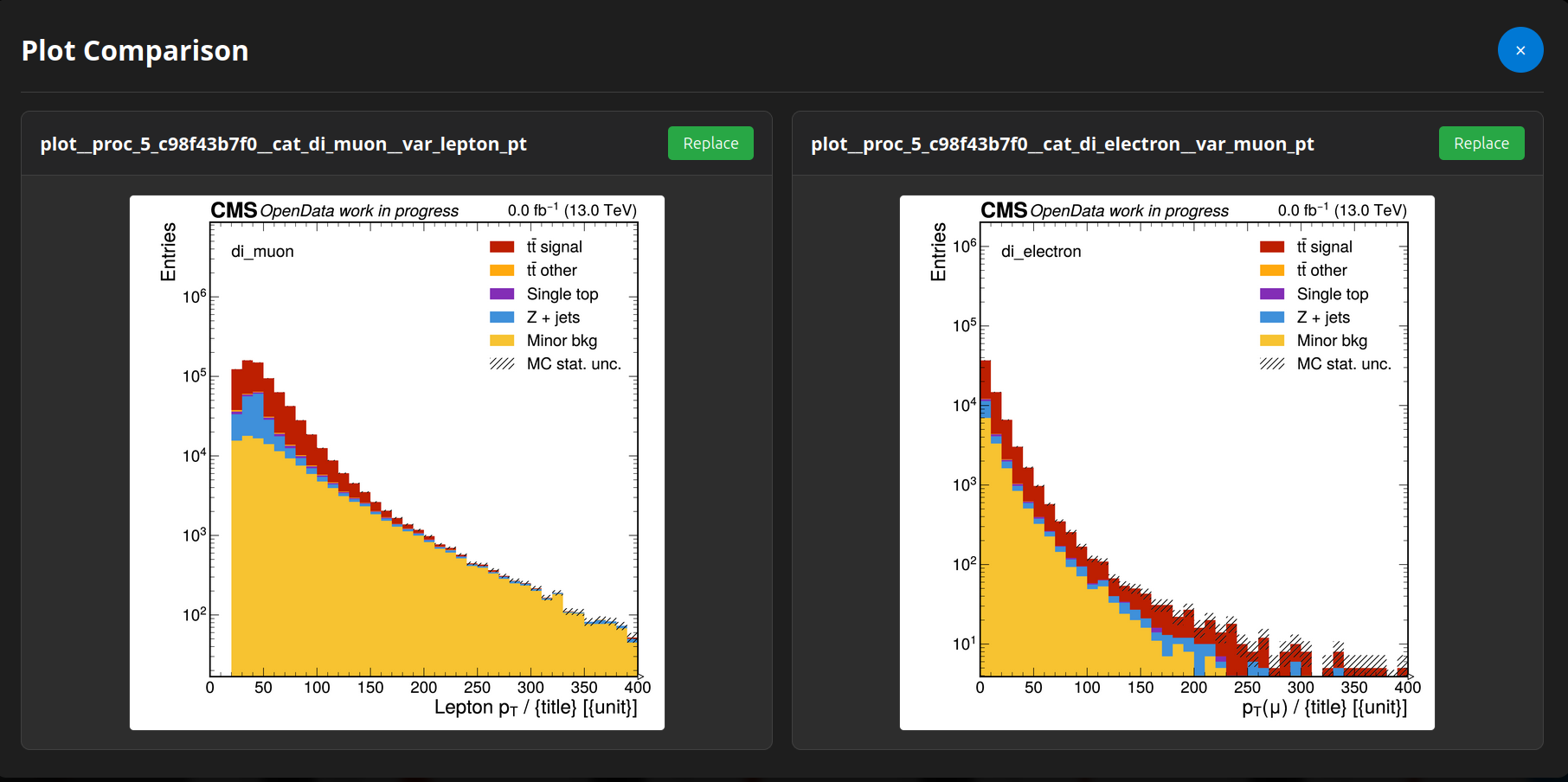
- **Plot Comparison**: Side-by-side comparison tool for analyzing differences
- **Metadata Management**: YAML/JSON metadata with inheritance and display, to properly label each folder
- **Recent Plots**: Quick access to recently viewed items
- **Theme Support**: Dark/light theme toggle
- **Keyboard Shortcuts**: Power-user navigation
### Developer-Friendly
- **Python API**: Import and use programmatically in other projects
- **CLI Interface**: Command-line command `gallery`
- **TUI Interface**: Textual-based terminal UI `gallery tui`
- **Configuration Flexibility**: Config file stored under user `$HOME/.config/gallery`
- **Source Override**: Process single directories without full regeneration
## 📸 Screenshots
### Main Gallery View

### Metadata Display

### Plot Comparison Tool
### Search Functionality
 ## ⚙️ Configuration
### config.yaml Structure
```yaml
# Gallery configuration
web_folder: "/web/user/public_html"
plot_root: "gallery"
png_dpi: 150 # just the thumbnails
# Source directories
sources:
- name: "analysis_results"
path: "/path/to/plots/directory"
- name: "specific_plot"
path: "/path/to/single/plot.pdf"
# UI settings
ui:
search_debounce_ms: 300
max_recent_plots: 20
# Path settings
paths:
work_dir: "/work/directory"
```
### Metadata Files
Create `metadata.yaml` files in your source directories. The fields are all arbitrary and rendered using
yaml object interpretation (dict, list...). You can have different metadata.yaml files in each folder,
with lower-level fields overriding the parent values. Great for labelling specific experiments.
```yaml
# metadata.yaml
title: "Analysis Results"
description: "Results for my analysis"
experiment: "CMS"
dataset: "Run2_2016_nano_v9"
parameters:
luminosity: "35.9 fb^{-1}"
center_of_mass_energy: "13 TeV"
selection: "baseline"
tags:
- "physics"
- "analysis"
- "cms"
authors:
- "Researcher A"
- "Researcher B"
```
## 🎮 User Interface Guide
### Navigation Controls
| Button | Function | Keyboard Shortcut |
|--------|----------|-------------------|
| 🔍 Search | Real-time plot search | `Ctrl+K` |
| 📋 Recent | Recently viewed plots | `Ctrl+R` |
| ⚖️ Compare | Side-by-side comparison | `Ctrl+C` |
| ☀️ Theme | Toggle dark/light theme | `Ctrl+T` |
### Metadata Section

- **Toggle Button**: Show/hide folder information
- **Copy Path**: Quick access to metadata file location
- **Hover Tip**: Information about metadata file formats
- **YAML Structure**: Preserves original formatting and indentation
### View Modes
## ⚙️ Configuration
### config.yaml Structure
```yaml
# Gallery configuration
web_folder: "/web/user/public_html"
plot_root: "gallery"
png_dpi: 150 # just the thumbnails
# Source directories
sources:
- name: "analysis_results"
path: "/path/to/plots/directory"
- name: "specific_plot"
path: "/path/to/single/plot.pdf"
# UI settings
ui:
search_debounce_ms: 300
max_recent_plots: 20
# Path settings
paths:
work_dir: "/work/directory"
```
### Metadata Files
Create `metadata.yaml` files in your source directories. The fields are all arbitrary and rendered using
yaml object interpretation (dict, list...). You can have different metadata.yaml files in each folder,
with lower-level fields overriding the parent values. Great for labelling specific experiments.
```yaml
# metadata.yaml
title: "Analysis Results"
description: "Results for my analysis"
experiment: "CMS"
dataset: "Run2_2016_nano_v9"
parameters:
luminosity: "35.9 fb^{-1}"
center_of_mass_energy: "13 TeV"
selection: "baseline"
tags:
- "physics"
- "analysis"
- "cms"
authors:
- "Researcher A"
- "Researcher B"
```
## 🎮 User Interface Guide
### Navigation Controls
| Button | Function | Keyboard Shortcut |
|--------|----------|-------------------|
| 🔍 Search | Real-time plot search | `Ctrl+K` |
| 📋 Recent | Recently viewed plots | `Ctrl+R` |
| ⚖️ Compare | Side-by-side comparison | `Ctrl+C` |
| ☀️ Theme | Toggle dark/light theme | `Ctrl+T` |
### Metadata Section

- **Toggle Button**: Show/hide folder information
- **Copy Path**: Quick access to metadata file location
- **Hover Tip**: Information about metadata file formats
- **YAML Structure**: Preserves original formatting and indentation
### View Modes
 - **Grid View**: Thumbnail grid with metadata overlay
- **Large List**: Detailed list with larger previews
- **Compact List**: Dense list for quick scanning
## 🛠️ Development Guide
### Project Structure
```
scientific-gallery-generator/
├── generate_gallery.py # Main gallery generator
├── config.yaml # Configuration file
├── templates/
│ └── gallery.html # Jinja2 template
├── assets/
│ ├── css/ # Stylesheets
│ │ ├── main.css # Main stylesheet
│ │ ├── variables.css # CSS variables
│ │ ├── metadata-section.css # Metadata styling
│ │ └── ...
│ └── js/ # JavaScript modules
│ ├── main.js # Application entry point
│ ├── gallery-app.js # Core application
│ ├── metadata-section.js # Metadata functionality
│ └── ...
├── orchestration/
│ ├── config.py # Configuration management
│ ├── metadata.py # Metadata handling
│ └── ...
└── tests/
└── validate_metadata.py # Metadata validation
```
### Adding New Features
#### 1. CSS Components
```css
/* assets/css/new-feature.css */
.new-feature {
/* Your styles here */
}
```
Add to `assets/css/main.css`:
```css
@import url('./new-feature.css');
```
#### 2. JavaScript Modules
```javascript
// assets/js/new-feature.js
export class NewFeature {
constructor() {
this.init();
}
init() {
// Initialize your feature
}
}
```
Import in `assets/js/gallery-app.js`:
```javascript
import { NewFeature } from './new-feature.js';
```
#### 3. Template Extensions
```html
{% if new_feature_enabled %}
- **Grid View**: Thumbnail grid with metadata overlay
- **Large List**: Detailed list with larger previews
- **Compact List**: Dense list for quick scanning
## 🛠️ Development Guide
### Project Structure
```
scientific-gallery-generator/
├── generate_gallery.py # Main gallery generator
├── config.yaml # Configuration file
├── templates/
│ └── gallery.html # Jinja2 template
├── assets/
│ ├── css/ # Stylesheets
│ │ ├── main.css # Main stylesheet
│ │ ├── variables.css # CSS variables
│ │ ├── metadata-section.css # Metadata styling
│ │ └── ...
│ └── js/ # JavaScript modules
│ ├── main.js # Application entry point
│ ├── gallery-app.js # Core application
│ ├── metadata-section.js # Metadata functionality
│ └── ...
├── orchestration/
│ ├── config.py # Configuration management
│ ├── metadata.py # Metadata handling
│ └── ...
└── tests/
└── validate_metadata.py # Metadata validation
```
### Adding New Features
#### 1. CSS Components
```css
/* assets/css/new-feature.css */
.new-feature {
/* Your styles here */
}
```
Add to `assets/css/main.css`:
```css
@import url('./new-feature.css');
```
#### 2. JavaScript Modules
```javascript
// assets/js/new-feature.js
export class NewFeature {
constructor() {
this.init();
}
init() {
// Initialize your feature
}
}
```
Import in `assets/js/gallery-app.js`:
```javascript
import { NewFeature } from './new-feature.js';
```
#### 3. Template Extensions
```html
{% if new_feature_enabled %}
{% endif %}
```
### Metadata System Extension
#### Custom Metadata Fields
```yaml
# metadata.yaml
custom_field: "value"
nested_data:
subfield: "nested value"
list_data:
- "item 1"
- "item 2"
```
#### LaTeX Support
```yaml
formula: "$$E = mc^2$$"
equation: "$$\\sum_{i=1}^{n} x_i = \\bar{x} \\cdot n$$"
```
## 🔧 Advanced Configuration
### ImageMagick Settings
```bash
# Increase memory limits for large PDFs
export MAGICK_MEMORY_LIMIT=2GB
export MAGICK_MAP_LIMIT=2GB
```
### Performance Optimization
```yaml
# config.yaml
png_dpi: 150 # Balance quality vs. file size
parallel_processing: true # Enable multi-threading
cache_enabled: true # Enable metadata caching
```
### Custom Styling
```css
/* Override theme colors */
:root {
--primary-color: #your-color;
--background-color: #your-bg;
}
```
## 🐛 Troubleshooting
### Common Issues
| Issue | Solution |
|-------|----------|
| ImageMagick not found | Install: `sudo apt-get install imagemagick` |
| Permission denied | Check file permissions and web directory access |
| PDF conversion fails | Verify PDF is not corrupted, increase memory limits |
| Metadata not showing | Check YAML syntax and file permissions |
| JavaScript errors | Clear browser cache and check console |
### Debug Mode
```bash
# Enable verbose logging
python generate_gallery.py --verbose
# Clean regeneration
python generate_gallery.py --clean
```
## 🤝 Contributing
**IMPORTANT**: Since this is in part a project made for fun made to test the limits of AI coding agents, all code pushed to this repository must be AI generated. Use your favorite agent of choice, mine was Github Copilot for VSCode. Bonus points if you let the agent write the commit messages too.
1. **Fork the repository**
2. **Create a feature branch**
```bash
git checkout -b feature/amazing-feature
```
3. **Commit your changes**
```bash
git commit -m 'Add amazing feature'
```
4. **Push to the branch**
```bash
git push origin feature/amazing-feature
```
5. **Open a Pull Request**
### Development Setup
```bash
# Install development dependencies
pip install -r requirements-dev.txt
# Run tests
python -m pytest tests/
# Validate metadata
python tests/validate_metadata.py
```
## 📄 License
This project is licensed under the MIT License - see the [LICENSE](LICENSE) file for details. See the Disclaimer section below for more information.
## 🙏 Acknowledgments
### Disclaimer
This project was made *entirely* using Claude Sonnet 4.0 and GPT 4.1. 100% of the code was AI generated an no human hand was involved other than prompting the Agent. I do not claim any part of this project as my own work.
### Packages:
- **ImageMagick** for PDF to PNG conversion
- **Jinja2** for templating engine
- **MathJax** for LaTeX rendering
- **PyYAML** for YAML processing
## 📚 Documentation
Currently empty
## 🔗 Links
- [Example Gallery](https://etpwww.etp.kit.edu/~kschmidt/gallery/index.html)
### 3. **Maintainability**
- Each JavaScript module handles a specific feature area
- Modules can be independently maintained and tested
- Clear dependencies and interfaces between modules
- Individual files are much smaller and focused
- Easy to locate and modify specific functionality
- Reduced cognitive load when working on features
### 4. **Development Benefits**
- Better IDE support with syntax highlighting and intellisense
- Easier debugging with source maps
- Ability to add build tools if needed
## Module Responsibilities
### CSS Modules
- **variables.css**: Theme colors and CSS custom properties
- **base.css**: Typography, basic layout, list styles
- **navigation.css**: Breadcrumb and navigation button styles
- **search.css**: Search box, results, and highlighting
- **folder-tree.css**: Collapsible folder tree display
- **grid.css**: Plot thumbnails grid and selection states
- **sidebar.css**: Recent plots sidebar and overlay
- **floating-elements.css**: Action buttons and keyboard help
- **stats.css**: Gallery statistics display
- **comparison.css**: Plot comparison overlay
- **responsive.css**: Mobile and tablet adaptations
### JavaScript Modules
- **ThemeManager**: Light/dark theme switching and persistence
- **NavigationManager**: Breadcrumb building and folder tree construction
- **SearchManager**: Plot search with debouncing and results display
- **RecentPlotsManager**: Recent plots tracking and sidebar management
- **ComparisonManager**: Plot comparison functionality
- **StatsManager**: Gallery statistics calculation and display
- **KeyboardManager**: Keyboard shortcuts and escape handling
- **Utils**: File size formatting, thumbnail highlighting, gallery refresh
### Main Application
- **GalleryApp**: Orchestrates all managers and provides unified interface
- **main.js**: Entry point that initializes the application
## Usage
The restructured application maintains **full backward compatibility** with the original template. All existing functionality works exactly the same way.
### For Python Backend
Update your template reference to use the new template:
```python
# Instead of template.html, use:
template_path = 'templates/gallery.html'
```
### CSS Asset Path
The template expects CSS/JS assets to be served from `/assets/` relative to the gallery pages. Update your web server configuration to serve these static files.